Block During Game Feature in Game Booster
 Please Note: The information on this page is for Australian products only. Models, sequences, error codes or settings will vary depending on location and/or where the product had been purchased. To be redirected to your local support page please click here.
If you’re receiving calls, messages and app notifications when playing gaming apps, you can turn on the "Block during game" feature in Game Booster. In the app, you can block specific features of the device that may interfere with your gameplay.
“Block during game” will block certain notifications whenever you have a game opened, so you won't have to worry about being interrupted. However, keep in mind that some notifications cannot be blocked and will always appear during games.
Note: Check if your device's software and related apps are updated to the latest version to avoid experiencing any problems when following the recommendations below. Instructions may vary between software versions.
Setting Up 'Block During Game'
You can set up the “Blocking during game” feature while playing a game.
Note: By turning on the switch next to “Notifications”, you will prevent certain notifications and alerts from appearing when you're playing a game. Remember that not all alerts will be blocked, such as alarms and certain app notifications, for example those from Facebook Messenger.
Step 1
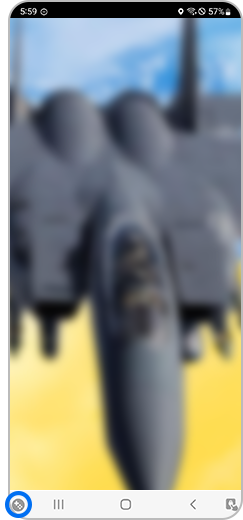
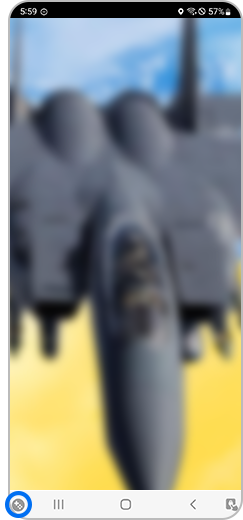
During a game, tap the Game Booster Icon in the bottom left.
Step 2


Click the Settings icon.
Step 3
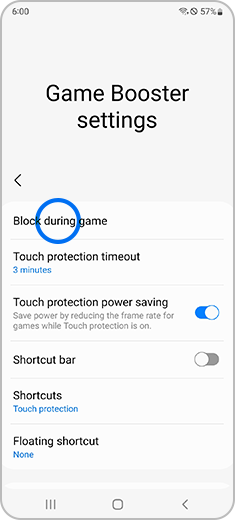
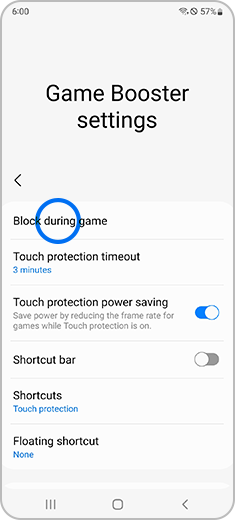
Select the Block during game menu option.
Step 4
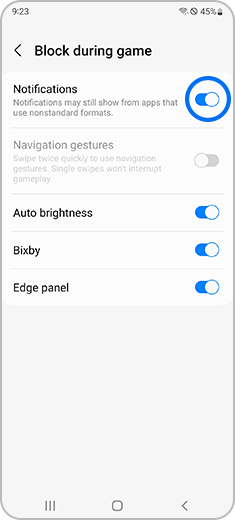
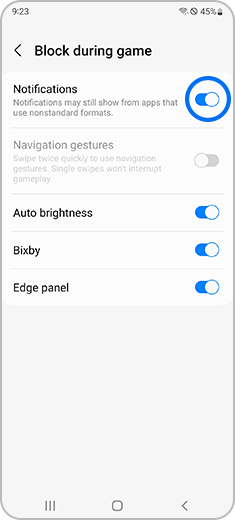
Tou can toggle the switch to enable or disable notifications and other settings.
For further assistance, please contact our Chat Support. To find your Samsung product's User Manual, head to Manuals & Downloads.
Thank you for your feedback!
Please answer all questions.
Contact Info
Contact us
WhatsApp
![]()
![]()

