How to Edit Channels on Your Samsung TV
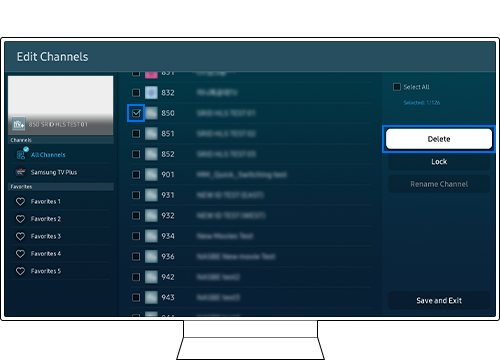
Editing channels on your Samsung TV allows you to customize your viewing experience by removing unwanted channels, locking specific content, and creating personalized Favorites lists. Follow the steps below to manage your channels effectively.
1. How to Access the Edit Channels Screen
To access the Edit Channels screen on your Samsung TV, follow these steps:
- Press the Home button on your remote control.
- Navigate to Settings using the directional buttons.
- Select Broadcast & Devices > Channel > Edit Channels.
Note: You can also access the Edit Channels screen from the left side of the guide screen.
2. How to Delete or Restore a Channel
To remove or restore a channel on your Samsung TV, follow these steps:
- From the Edit Channels screen, select the channel you want to delete.
- Press the Delete button to remove the channel.
- The deleted channel will no longer appear on the Channel List and will be greyed out on the Edit Channels screen.
- To restore a channel, navigate to the Edit Channels screen, select the deleted channel, and press the Restore button.
3. How to Lock or Unlock a Channel
To restrict access to certain channels, you can lock them using a PIN. Follow these steps:
- From the Edit Channels screen, select the channel you want to lock.
- Press the Lock button and enter a PIN to restrict access.
- Locked channels will display a lock icon and can only be accessed by entering your PIN.
- To unlock a channel, navigate to the Edit Channels screen, select the locked channel, and press the Unlock button. Enter your PIN to confirm.
4. How to Add Channels to Favorites
To create a personalized Favorites list, follow these steps:
- From the Edit Channels screen, press the left directional button on your remote control and select a Favorites list.
- Press the right directional button on your remote control to select Add Channels.
- From the Channel List, select the channels you want to add.
- Press Add to save the selected channels to your Favorites list.
Note: The channels added to Favorites will display a ♥ icon in the channel list. Up to five Favorites lists can be created, allowing each family member to customize their viewing preferences.
5. Additional Things to Check
If you're experiencing issues with editing channels, consider the following:
- Ensure your Samsung TV is connected to a stable internet connection, as some channels may require online access.
- Check for software updates on your Samsung TV, as they may resolve compatibility or functionality issues.
- Verify that your remote control is functioning properly and has sufficient battery life.
6. Supported Samsung TV Models
The steps outlined above are compatible with most modern Samsung TV models, including:
Galaxy S24, Galaxy S25, Galaxy S26, Galaxy Z Fold, Galaxy Z Flip, and Galaxy A series.
7. Related Samsung Support Topics
Thank you for your feedback!
Please answer all questions.