How to Fix Automatic Brightness Changes on Samsung TVs
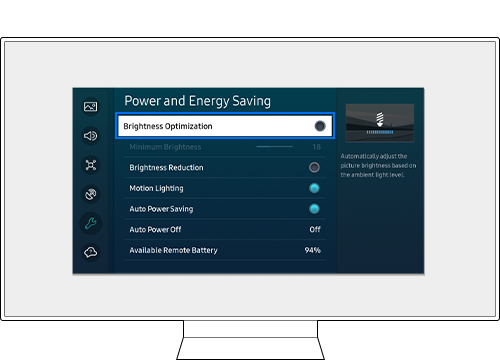
If your Samsung TV screen brightness keeps changing automatically, it's likely due to built-in adaptive features designed to optimize viewing or save power. These include Brightness Optimization, Contrast Enhancer, and energy-saving modes like Brightness Reduction or Motion Lighting. Here's how to troubleshoot and regain full control over your screen brightness.
1. Why does my Samsung TV screen brightness change automatically?
Samsung TVs include several features that automatically adjust screen brightness based on ambient light, content motion, or power-saving goals. These adjustments can cause unexpected dimming or brightening during use.
- Brightness Optimization: Adjusts screen brightness according to room lighting conditions.
- Contrast Enhancer: Modifies brightness to improve contrast between light and dark areas.
- Brightness Reduction: Lowers brightness to conserve power.
- Motion Lighting: Changes brightness based on screen motion to save energy.
2. How to disable automatic brightness adjustments on my Samsung TV
Follow these steps to turn off each feature causing unwanted brightness changes:
2.1. Turn off Contrast Enhancer
Contrast Enhancer can cause brightness fluctuations to balance image contrast.
- From your Home screen, go to Menu > Settings > All Settings.
- Navigate to Picture > Expert Settings.
- Select Contrast Enhancer and toggle it off.
2.2. Disable Brightness Optimization
Brightness Optimization adjusts screen brightness based on ambient light levels.
- From your Home screen, go to Menu > Settings > All Settings.
- Navigate to General & Privacy > Power and Energy Saving.
- Select Brightness Optimization and disable it.
Note: This feature is automatically disabled when Intelligent Mode (Adaptive Picture) is active.
2.3. Turn off Brightness Reduction
Brightness Reduction lowers screen brightness to save power.
- From your Home screen, go to Menu > Settings > All Settings.
- Navigate to General & Privacy > Power and Energy Saving.
- Select Brightness Reduction and disable it.
Note: This feature is automatically disabled when Intelligent Mode (Adaptive Picture) is active.
2.4. Disable Motion Lighting
Motion Lighting adjusts brightness based on screen movement to conserve energy.
- From your Home screen, go to Menu > Settings > All Settings.
- Navigate to General & Privacy > Power and Energy Saving.
- Select Motion Lighting and disable it.
Note: This feature is automatically disabled when Intelligent Mode (Adaptive Picture) is active.
3. Additional things to check
If disabling these features doesn't resolve the issue, consider these options:
- Ensure your Samsung TV is running the latest software version via Settings > Support > Software Update.
- Check for external factors like room lighting changes or nearby light sensors interfering with ambient detection.
- Test the issue in different viewing environments to rule out environmental causes.
4. Supported Samsung TV models
These troubleshooting steps apply to most modern Samsung TVs, including:
Galaxy Crystal UHD, Galaxy Neo QLED, Galaxy The Frame, Galaxy The Serif, Galaxy S-Series, Galaxy Q-Series, and other compatible Samsung Smart TVs.
5. When updates may not appear
Software updates might not appear if:
- Your TV is connected to an unstable or slow internet connection.
- The model is no longer receiving firmware support.
- The update server is temporarily unavailable.
Thank you for your feedback!
Please answer all questions.