How to Access Data When a Galaxy Touchscreen Fails
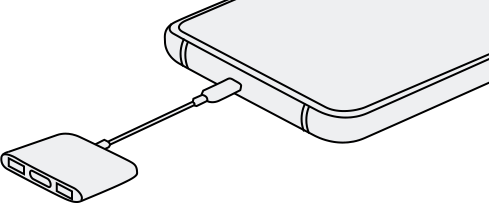
If your Samsung Galaxy phone's touch screen is unresponsive or the screen is not visible, you can still access your data using alternative methods like a USB mouse, HDMI screen mirroring, or Find My Mobile. These solutions work for Galaxy S24, Galaxy Z Fold, Galaxy Z Flip, and other compatible devices.
1. How to Access Data When the Touch Screen Doesn't Work but the Screen Is Visible
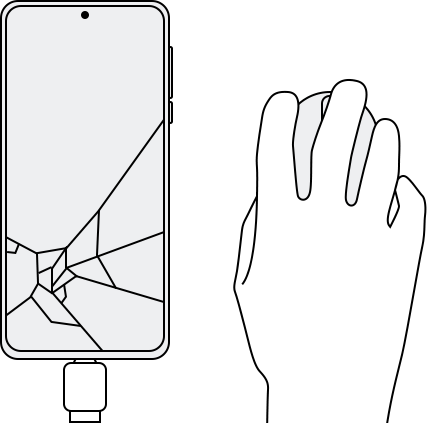
If your phone's touch screen is unresponsive but the screen remains visible, you can use a USB mouse to navigate and access your data. This method requires an OTG (On-The-Go) adapter, typically a USB-C multi-port adapter.
- Connect the USB adapter to your phone.
- Connect the USB mouse to the adapter.
- Once connected, use the mouse to navigate and back up your data.
- You can also connect a keyboard using the same method to enter your PIN or password.
- To return to the Home screen, use the right-click function on the mouse.
- An OTG adapter allows you to connect a USB flash drive or USB A cable to your phone or tablet through the Micro USB or USB-C charging port.
2. How to Access Data When the Screen Is Not Visible
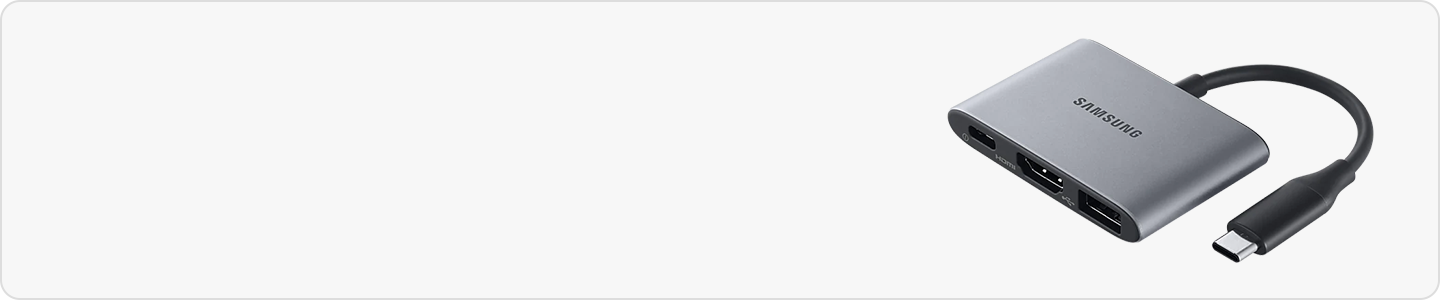
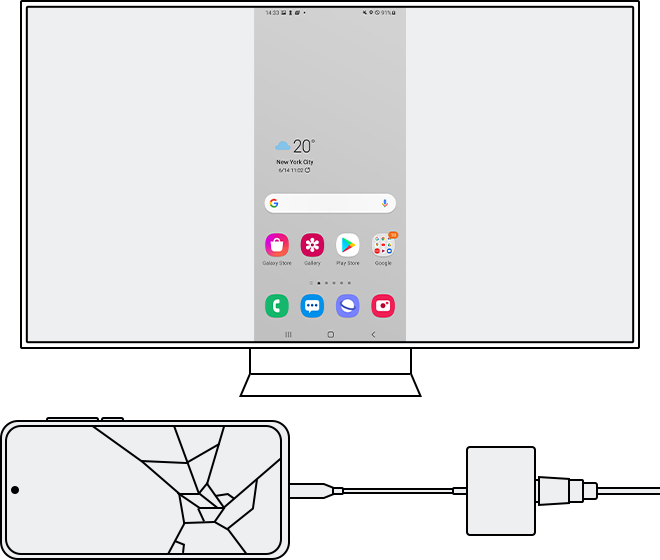
If your phone's screen is completely unresponsive, you can connect it to a TV or monitor using screen mirroring. This method requires a multiport adapter and an HDMI cable. Ensure your phone is unlocked; if fingerprint or face recognition fails, use Find My Mobile to unlock it.
- Connect the adapter to your phone and attach the HDMI cable to the adapter.
- Connect the other end of the HDMI cable to your TV's HDMI port.
- Turn on the TV and select the input corresponding to the HDMI connection.
- Once connected, your phone's screen will appear on the TV, allowing you to change settings and back up data.
- If DeX mode is active, exit it before connecting to the TV.
- There may be a slight delay between phone actions and TV display.
- HDMI display output may not be supported on certain models or devices.
- If both the screen and touch are unresponsive, use a multiport adapter to connect the TV and a mouse simultaneously.
3. Supported Samsung Galaxy Devices
These methods are compatible with most Samsung Galaxy devices, including the Galaxy S24, Galaxy S25, Galaxy S26, Galaxy Z Fold, Galaxy Z Flip, and Galaxy A series. Ensure your device supports OTG or HDMI connectivity for optimal results.
4. Additional Things to Check
Before attempting these solutions, ensure your device's software and related apps are updated to the latest version. Follow these steps:
- Go to Settings > Software Update.
- Tap on Download and Install.
- Follow the on-screen instructions to complete the update.
Related Samsung Support Topics

Thank you for your feedback!
Please answer all questions.