How to Fix Proximity Sensor Issues on Galaxy
Why is my Samsung Galaxy proximity sensor not working?
If your Samsung Galaxy phone's display doesn't turn off during calls or behaves unexpectedly, the proximity sensor might not be functioning correctly. This sensor automatically locks the screen when you hold the phone to your ear, preventing accidental touches and saving battery life. Common causes include screen protectors, static interference, or software glitches. Follow these steps to diagnose and fix the issue.
1. What is the proximity sensor and where is it located?
The proximity sensor detects when your face is close to the screen during calls and turns off the display to prevent unintended interactions. It uses infrared light to sense nearby objects.
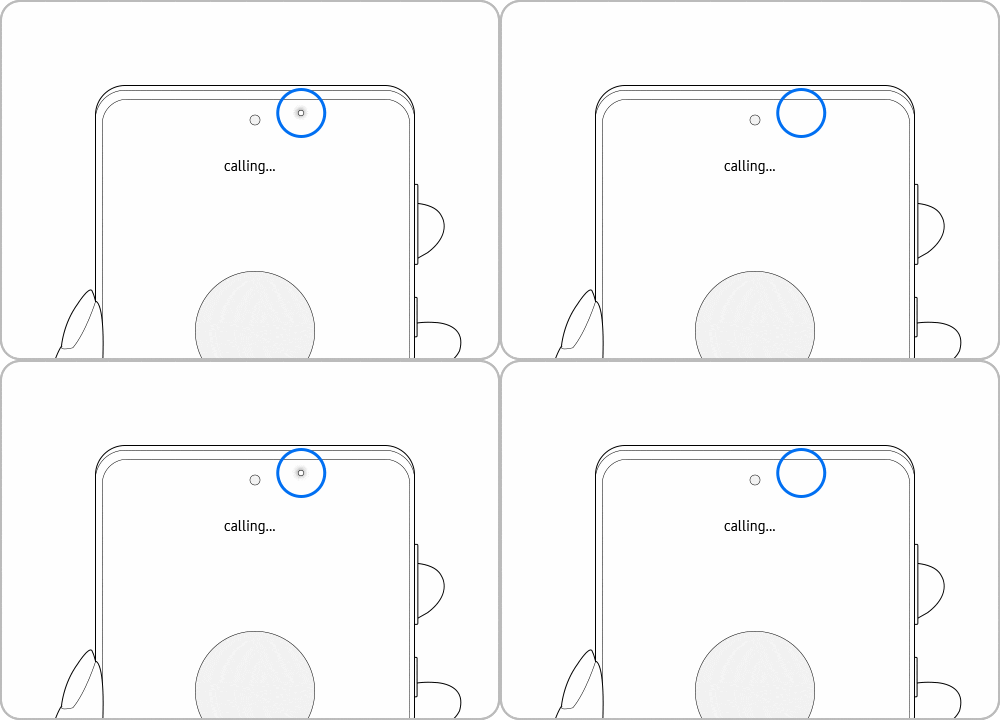
The sensor is typically located at the top of the front screen, though its exact position varies by model. On devices like the Galaxy S21 series with an Infinity Display, the sensor is internally positioned within the top bezel or under the display. In some cases, a faint blinking light may be visible—this is normal and not a malfunction.
2. Why is my Samsung Galaxy proximity sensor not working?
Proximity sensor issues can arise from several factors. Here are the most common causes:
- Screen protectors or cases: Non-Samsung accessories may block the sensor.
- Static electricity: Hair or accessories near the sensor can interfere with its operation.
- Outdated software: Bugs in older firmware versions can affect sensor functionality.
- Hardware obstructions: Dust or debris covering the sensor can disrupt its performance.
3. How to fix the proximity sensor on my Samsung Galaxy?
Follow these steps to resolve proximity sensor issues on your Samsung Galaxy device:
- Update your device software: Go to Settings > Software Update > Download and Install to ensure your device is running the latest firmware.
- Clean the sensor area: Use a soft, lint-free cloth to gently wipe the top edge of your phone's front screen where the sensor is located.
- Remove third-party accessories: Take off any screen protectors, cases, or stickers that might block the sensor. Use only Samsung-authorized accessories.
- Disable Double Tap to Wake: If enabled, this feature can interfere with the sensor. Go to Settings > Advanced Features > Motions and Gestures > Double Tap to Wake and turn it off.
- Restart your phone: Swipe down from the top of the screen, tap the Power icon, and select Restart.
4. When does the proximity sensor stop working?
The proximity sensor is inactive during speakerphone or Bluetooth calls. If you're using these features, the screen won't automatically turn off. Ensure you're making regular voice calls to test the sensor properly.
5. Supported Samsung Galaxy devices
Proximity sensor troubleshooting applies to most Samsung Galaxy devices, including the Galaxy S24, Galaxy S25, Galaxy S26, Galaxy Z Fold, Galaxy Z Flip, and Galaxy A series. Note that sensor placement and functionality may vary slightly across models.
Related Samsung support topics

Thank you for your feedback!
Please answer all questions.