How to Use Multi View on Your Samsung TV
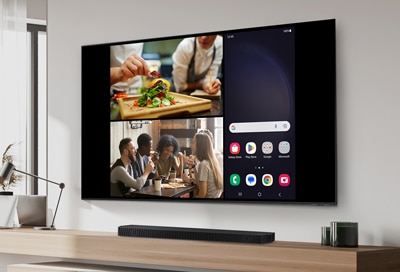
How to Use Multi View on Samsung Smart TV
Multi View on Samsung Smart TV lets you watch multiple content streams at once, such as live TV, streaming apps, gaming consoles, or mirrored content from your smartphone. This feature is ideal for multitasking, allowing you to follow a workout video while watching a sports event or monitor different channels during busy schedules.
1. How to Activate Multi View on Samsung Smart TV
- Turn on your Samsung Smart TV and ensure it is connected to a stable internet connection.
- Grab your TV remote and press the Home button to access the main menu.
- Navigate to the Multi View option, which can usually be found under the More Options or Settings menu.
- Select Multi View to enable the feature. Your screen will split into multiple windows.
- Choose the content sources you want to view simultaneously, such as live TV channels, streaming apps, or mirrored devices.
2. Supported Content Sources for Multi View
- Live TV channels: Watch multiple live broadcasts at once.
- Streaming apps: Enjoy Netflix, YouTube, or Disney+ in separate windows.
- Gaming consoles: Play games on one screen while watching tutorials on another.
- Mirrored devices: Connect your Samsung Galaxy phone or tablet via Smart View to display content on a window.
3. Why Use Multi View on Samsung Smart TV?
- Multitasking: Follow a workout video while watching a live sports match or news channel.
- Enhanced viewing experience: Customize window sizes and positions for optimal viewing.
- Real-time monitoring: Track multiple events or feeds simultaneously, such as stock markets or sports scores.
4. Additional Things to Check
- Ensure your Samsung Smart TV is running the latest software version for optimal Multi View performance.
- Verify that your internet connection is stable, especially when streaming multiple high-definition content sources.
- Check compatibility with your connected devices, such as gaming consoles or smartphones, to ensure smooth mirroring.
5. Supported Samsung Smart TV Models
Multi View is available on select Samsung Smart TV models, including:
- 2022 and newer Samsung Smart TVs with Tizen OS.
- High-end models like the QLED, Neo QLED, and MicroLED series.
6. Related Samsung Support Topics
Thank you for your feedback!
Please answer all questions.