How to Connect Your Phone to a TV with Smart View
How to Connect Your Samsung Galaxy Device to a TV Using Smart View
To connect your Samsung Galaxy device to a TV using Smart View, ensure both devices are on the same Wi-Fi network, have updated software, and support screen mirroring. Smart View allows seamless screen sharing for photos, videos, presentations, and games.
1. Why Use Smart View to Connect Your Samsung Galaxy Device to a TV?
Smart View is a built-in feature on Samsung Galaxy devices and Smart TVs that enables wireless screen mirroring. It eliminates the need for cables and allows you to share content from your phone or tablet directly onto a larger display.
2. Supported Samsung Galaxy Devices
Smart View is compatible with most Samsung Galaxy devices, including:
- Galaxy S24, S25, S26 series
- Galaxy Z Fold and Galaxy Z Flip series
- Galaxy A series (select models)
3. How to Connect Your Samsung Galaxy Device to a TV Using Smart View
- Ensure both your Samsung Galaxy device and Smart TV are connected to the same Wi-Fi network.
- On your Samsung Galaxy device, swipe down from the top of the screen to access the Quick Settings panel.
- Tap on Smart View or the screen mirroring icon.
- Select your Samsung Smart TV from the list of available devices.
- Follow the on-screen prompts to establish the connection.
4. Additional Things to Check
- Update your Samsung Galaxy device and Smart TV software to the latest version.
- Ensure your Smart TV supports screen mirroring and Smart View functionality.
- Restart both devices if the connection fails or is unstable.
5. Why the Issue Happens
- Devices are on different Wi-Fi networks.
- Outdated software on either device.
- Incompatible Smart TV model.
6. Related Samsung Support Topics


Step 1. From Settings choose Connected devices


Step 2. choose Smart View
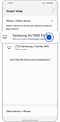

Step 3. choose a device to mirror


Step 4. Tap on Start now
Thank you for your feedback!
Please answer all questions.