How to Update Software on Samsung TVs and Monitors
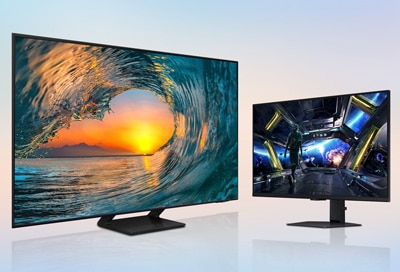
How to update software on Samsung Smart TV and Smart Monitor
To update your Samsung Smart TV or Smart Monitor, you can use automatic updates, manual updates, or a USB flash drive. Updates improve performance, add new features, and fix bugs. Follow these steps to ensure your device runs the latest software.
1. Enable Automatic Updates
Automatic updates ensure your Samsung Smart TV or Smart Monitor stays up-to-date without manual intervention. This method works when your device is connected to a stable network.
- Turn on your Samsung Smart TV or Smart Monitor.
- Press the Home button on your remote control.
- Navigate to Settings > General > Software Update.
- Select Auto Update and toggle it on.
- Ensure your device remains connected to the internet and powered on during updates.
- Automatic updates typically occur when the device is turned off or in standby mode.
2. Perform a Manual Update
If automatic updates are disabled or you want to check for updates immediately, you can manually update your Samsung Smart TV or Smart Monitor.
- Turn on your Samsung Smart TV or Smart Monitor.
- Press the Home button on your remote control.
- Go to Settings > General > Software Update.
- Select Update Now to begin the process.
- Wait for the update to download and install automatically.
- Ensure your device is connected to a stable Wi-Fi network to avoid interruptions.
3. Update Using a USB Flash Drive
If your Samsung Smart TV or Smart Monitor isn't connected to the internet, you can update the software using a USB flash drive.
- Download the latest software update file for your specific model from the Samsung Support website.
- Save the update file to a USB flash drive. Place the file in the top-level folder of the USB drive.
- Connect the USB flash drive to your Samsung Smart TV or Smart Monitor.
- Turn on your device and press the Home button on your remote control.
- Navigate to Settings > General > Software Update.
- Select Update Now and follow the on-screen instructions.
- Wait for the update to complete. Do not turn off your device or remove the USB flash drive during the process.
- The update process may take at least 10 minutes. Your device will restart automatically once the update is complete.
Additional Things to Check
- Ensure your Samsung Smart TV or Smart Monitor is connected to a stable Wi-Fi network or Ethernet connection for successful updates.
- Free up storage space if the update fails due to insufficient memory. Delete unused apps or files to create more space.
- If the update fails repeatedly, try using a different USB flash drive or downloading the update file again.
Supported Samsung Devices
This guide applies to most Samsung Smart TVs and Smart Monitors, including models from the QLED, Neo QLED, Micro LED, and Crystal UHD series. Ensure you download the correct software update file for your specific model.
Why Updates May Not Appear
- Your device may not show an update if it's already running the latest software version.
- Network connectivity issues can prevent your device from detecting available updates.
- Regional restrictions or firmware limitations may delay the release of updates in certain areas.
Related Samsung Support Topics
Thank you for your feedback!
Please answer all questions.