Use the Multi View feature on your Samsung Smart TV
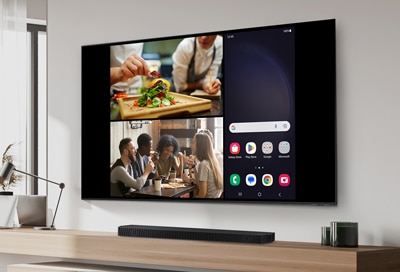
How to Use Multi View on Samsung Smart TVs
Samsung Smart TVs offer the Multi View feature, allowing you to view multiple content sources at once, such as live channels, apps, games, and mirrored content from your phone or laptop. This guide explains how to use Multi View, supported devices, and troubleshooting tips.
1. What is Multi View on Samsung Smart TVs?
Multi View enables you to split your Samsung Smart TV screen to display multiple content sources simultaneously. You can watch live TV while browsing apps, play games, or mirror your phone's screen alongside other content.
2. How to Start Using Multi View
- Press the Multi View button on your Samsung Smart TV remote.
-
Choose from the following options:
- Recent: Return to your most recent Multi View screen.
- Saved: Return to your saved Multi View screen.
- Add View: Add an app or source for Multi View.
- Make My Own: Select a layout template and choose an app or source to create a custom Multi View screen.
- Customize your Multi View screen by adjusting layouts, resizing screens, or using Picture-in-Picture (PiP).
3. Supported Samsung Smart TV Models
Only certain Samsung Smart TV models support Multi View. The number of simultaneous screens varies by model.
4. Supported 2024 Samsung Smart TVs
The following 2024 Samsung Smart TV models support Multi View:
- QN900D/QN800D: Up to 4 screens (4K at 60 fps). Note: 5 views can include 4 video screens and 1 Ambient window.
- QN700D: 2 screens (4K at 60 fps).
- S95D/S90D, Q70D through QN95D: 2 screens (2K at 60 fps + 4K at 60 fps).
- DU8500 through Q60D: 2 screens (2K at 60 fps + 2K at 30 fps). Note: DU8000 or higher models are supported in America.
5. Supported 2023 Samsung Smart TVs
The following 2023 Samsung Smart TV models support Multi View:
- QN900C/QN800C: Up to 4 screens (4K at 60 fps). Note: 5 views can include 4 video screens and 1 Ambient window.
- QN700C: 2 screens (4K at 60 fps).
- S95C/S90C, Q70C through QN95C: 2 screens (2K at 60 fps + 4K at 60 fps).
- CU8500 through Q60C: 2 screens (2K at 60 fps + 2K at 30 fps). Note: CU8000 or higher models are supported in the US.
6. Compatible Devices for Multi View
Multi View supports the following devices:
- Phones and tablets: Android 4.2 and later.
- AirPlay 2 devices: iPhone, iPad, iPod Touch, MacBook.
- Laptops and PCs: Windows 10 and 11.
- USB cameras: Logitech Webcam C930e, Logitech C922 PRO STREAM WEBCAM, Logitech Webcam C925E, Logitech C920s Pro HD Webcam, Logitech HD Pro Webcam C920, Logitech Webcam C920-C, Logitech Webcam C930c, Logitech HD Pro Webcam C920, Logitech StreamCam, Samsung Slim Fit Camera.
- Note: Samsung Smart TV models Q70C/Q70D and later support Android OS and iOS mobile devices. Models CU8000/DU8000 through Q6*C/Q6*D support Android OS mobile devices only.
7. Supported Content Sources for Multi View
The following sources are supported when using Multi View:
- HDMI sources: STB, console, OTT box, BDP, laptop.
- Tuner.
- Mobile mirroring: Android and iOS.
- Laptop mirroring: iOS and Windows.
- YouTube casting.
- USB camera.
- SmartThings camera.
- Ambient (Clock and Weather).
8. Supported Apps for Multi View
The following apps are supported when using Multi View:
- Samsung TV Plus.
- YouTube.
- YouTube TV.
- Melon.
- Barre3.
- Web browsers.
- Note: The list of supported apps may differ by region and may be updated without notice.
9. Additional Features for 2024 TV Models
On 2024 Samsung Smart TV models, you can access additional options for Multi View, such as customizing screen layouts and adjusting display sizes.
10. Related Samsung Support Topics
Thank you for your feedback!
Please answer all questions.