How To Get The Most Out Of Your New Galaxy Tab With An S Pen


You’ll find Samsung’s state of the art stylus pen seamlessly integrated with the latest Galaxy Tabs. If you’re looking for power and accuracy in every movement and a pen to paper experience, you can’t go wrong with a Samsung S Pen. Read on to explore how you can get the most out of your new Samsung tablet using the S Pen.
What is an S Pen?
The S Pen is Samsung's signature stylus, made for Galaxy devices such as the Galaxy Tab and designed to feel like writing with a real pen. First introduced with the original Galaxy Note in 2011, it has since become a defining part of the Galaxy experience, and today it comes in the box with Samsung's top Galaxy Tab models, including the Galaxy Tab S12 Ultra and Galaxy Tab S12+.
Unlike a basic touchscreen stylus, the S Pen is built to react to how you use it. With its hexagon-shaped design for a comfortable, stable grip and low-latency responsiveness, it lets you take handwritten notes, sketch, annotate documents and mark up PDFs directly on the screen, with a smooth, natural feel from the first stroke.
How does the Tab S Pen work?
The S Pen is the epic Samsung stylus which gives you the power to go beyond basic touch interaction with your new Samsung tablet. Designed to feel like a real pen with 4,096 levels of pressure sensitivity you can get creative with writing, drawing and swiping.
To get your S Pen to work, simply pick it up, hover it over the screen and start writing. To access the full S Pen features, you’ll need to activate Air Command; Samsung’s innovative software that enables seamless interaction with your Galaxy Tab.
Explore the S Pen features in the Air Command menu
Simply hover your S Pen over the tablet screen to access the Air Command menu (a small circle with pen icon). Here you’ll have the option to:
- Create note: get writing and drawing with Samsung Notes
- Smart Select: use your S Pen to select and save content
- Screen write: Write on the current screen with your S Pen
- Live messages: Get personal with your own animated GIFs, emojis and handwritten text on photos
- AR Doodle: draw, annotate and doodle on surfaces using the S Pen and Galaxy Tab camera
- Translate: use your S Pen to hover over a word or phrase to see an instant translation. You can even hear how it’s pronounced by tapping on the sound icon.
- PENUP: get drawing, colouring or designing with your S Pen and the PENUP app.
You can find more information about using the S Pen in our ‘Get the most out of your S Pen’ guide.
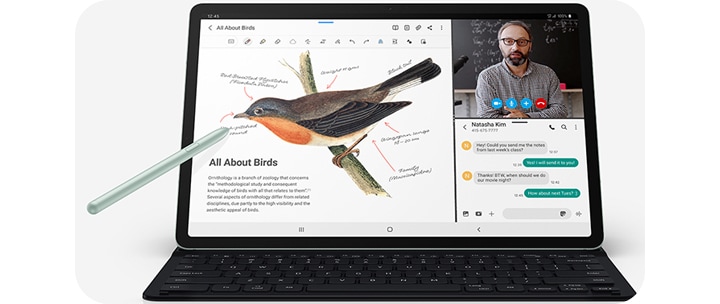
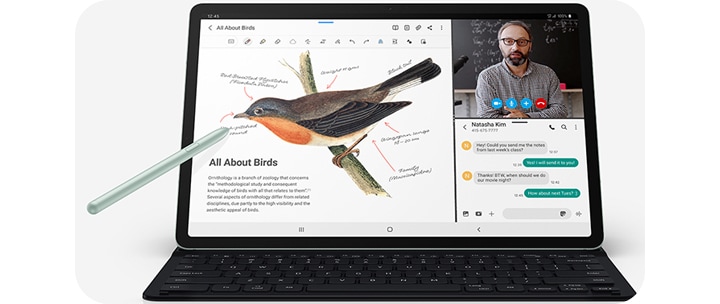
How to draw on a Samsung tablet?
Drawing and writing on a Galaxy Tab have never been easier with the epic S pen in the latest Galaxy Tab. Whether you’re looking to use the S Pen to boost your productivity or get creative with digital art you have a number of options:
Love to draw or take notes? See how you can create your ideal productivity setup with innovative stylus-ready tech built for creativity and focus.
1. Samsung Notes
Simply tap ‘create a note’ in the Air Command menu to begin. You can write, draw, highlight, adjust the size and change the transparency of your text - the freedom is yours. When you’re done, simply save and share. Find our step-by-step guide to taking notes using your S Pen here.
2. Screen Write
Annotating images, charts or PDF documents is easy with Screen Write. You’ll find Screen Write in the Air Command menu. Once you tap Screen Write, a screen capture will be taken of the content you are reviewing and the S Pen annotation tools will automatically open. You can then add notes with the S Pen, crop the image and share your ideas via email or messaging apps.
3. Screen off Memo
Suddenly remembered something you’ve forgotten? Simply remove the S Pen and start writing on your new Galaxy Tab screen without even needing to unlock it. When you’re done you’ll find all your saved memos in Samsung Notes.
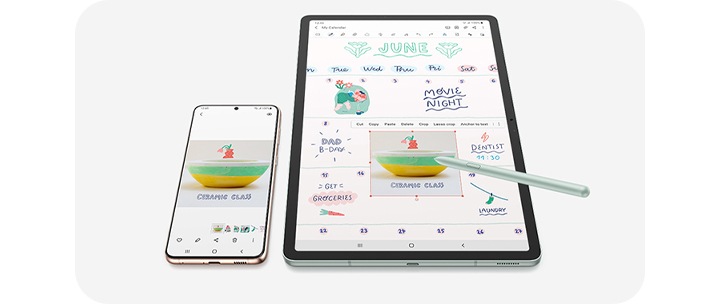
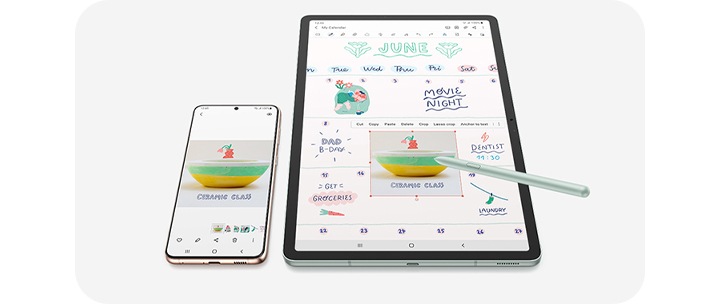
4. Handwriting to Text
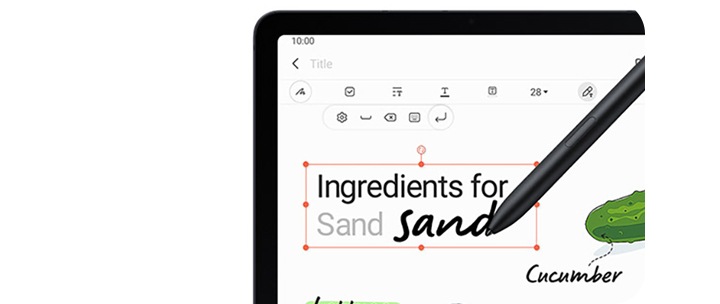
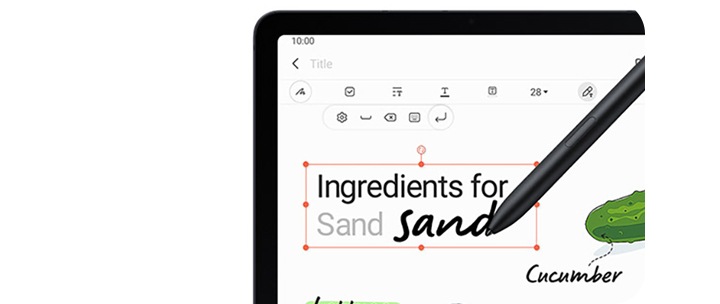
Bored of typing? In any app where you can type with an on screen keyboard, hover over the text field with your S Pen and select the handwriting icon (letter T) and get writing with your Samsung stylus.
5. PENUP
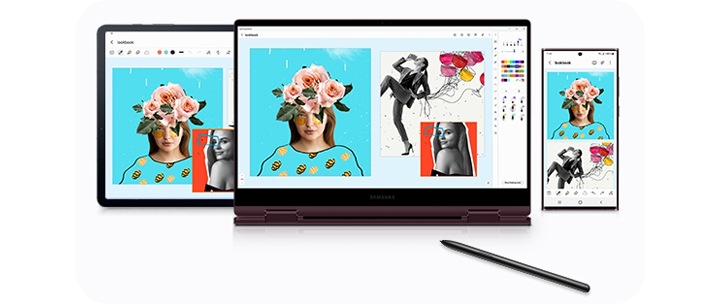
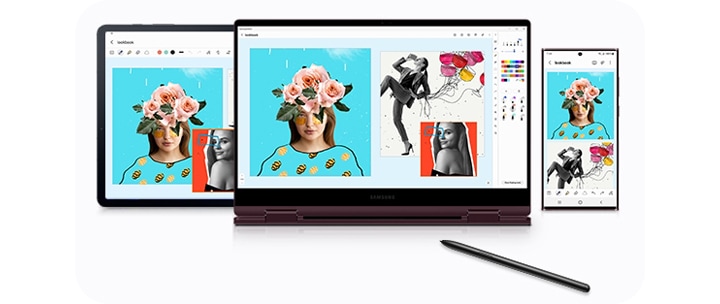
When it’s time to sit back and relax, PENUP has you covered. Learn to draw, get artistic with your own design or chill with some mindful onscreen colouring all thanks to the S Pen. For next level creativity, the Galaxy Tab S12 series comes with Clip Studio Paint*, the painting app used by professionals, so you can get creating masterpieces. Use your Galaxy smartphone as the artistic palette and your entire Tab S12 Ultra screen as your canvas.
*Clip Studio Paint membership required. 6-month free trial for first-time users, after which a paid subscription is required.
*Clip Studio Paint membership required. 6-month free trial for first-time users, after which a paid subscription is required.
Does the S Pen work on all Samsung tablets?
No. The innovative Samsung stylus pen is available with select Galaxy Tab S models, including the latest Galaxy Tab S12 Ultra and Galaxy Tab S12+, which both come with the hexagon-shaped S Pen in the box. The Galaxy Tab S Pen is designed to work with the latest range of Galaxy Tabs.
Please note: For full functionality only use the S Pen designed for your Galaxy Tab.
Which is the best Samsung tablet with an S Pen?
The incredible Galaxy Tab S12 series takes the award-winning formula from previous Galaxy Tab models and continues to innovate to make them even more exceptional. Bursting with stunning features, immersive screens and powerful batteries, the Galaxy Tab S12 range has something for everyone.
If you're looking for the best Samsung tablet with an S Pen, you can't go wrong with the gorgeous Galaxy Tab S12 Ultra 5G. Both the Galaxy Tab S12 Ultra and Galaxy Tab S12+ come with the hexagon-shaped S Pen in the box, and its low-latency responsiveness brings all your ideas to life whilst giving you impressive levels of control. You can even combine it with the awesome Galaxy S26 series to create artwork masterpieces with Clip Studio Paint*. And to top it all off, the S12 Ultra is wrapped in enhanced Armor Aluminum with IP68 protection, and is just 5.1mm thin.
For even more inspiration check out our ‘How to choose the best tablet for you’ and ‘Which Tablet Screen Size Is Best For You?’ buying guides.
*Clip Studio Paint membership required. 6-month free trial for first-time users, after which a paid subscription is required.
Frequently Asked Questions
-
Does the Samsung S Pen work on all Samsung tablets?No. The S Pen only works with Galaxy Tab S series models that officially support it, currently the Galaxy Tab S12 Ultra and Galaxy Tab S12+, plus the previous-generation Galaxy Tab S11 Ultra and Galaxy Tab S10+. It isn't compatible with Galaxy Tab A series tablets. Always check the specification page for your exact model before buying an S Pen separately.
-
What is the button on the S Pen for?The button on the side of the S Pen lets you trigger shortcuts without touching your screen. You can customise what it does in your tablet's S Pen settings.
-
Does the Samsung tablet come with a pen?Most Galaxy Tab S series models do, but it's not guaranteed across the whole Galaxy Tab range. The latest Galaxy Tab S12+ and Galaxy Tab S12 Ultra both come with an S Pen in the box, as did the Galaxy Tab S11 series before them. Galaxy Tab A series tablets, however, don't include an S Pen, so it's worth checking the "What's in the box" section for your specific model before you buy.
-
Do I need to charge the S Pen?This depends on your model. Check your tablet's specifications or user manual to see how your S Pen is powered.
-
Can I buy an S Pen separately if mine doesn't come with one?Yes. If your tablet supports S Pen but didn't ship with one, or if you've lost or damaged yours, S Pens are available separately through Samsung's online store and other retailers. Just make sure you pick one that's compatible with your exact tablet model.
-
Is the S Pen waterproof?The S Pen that comes with the Galaxy Tab S12 Ultra and Galaxy Tab S12+ is rated IP68 under IEC standard 60529, the same as the tablets. That means it can withstand submersion in up to 1.5 metres of freshwater for up to 30 minutes in lab test conditions. It isn't advised for beach or pool use, and water resistance isn't permanent and may diminish over time with normal wear and tear.
YouTube Video Schema
