How to use 5G with your Galaxy phone
How to enable and troubleshoot 5G on Samsung Galaxy phones
If your Samsung Galaxy phone supports 5G but isn't connecting to the network, ensure your device software is updated, your carrier plan includes 5G, and your network settings are correctly configured. Follow this guide to enable and troubleshoot 5G connectivity on your Galaxy phone.
1. What is 5G and what are its benefits?
5G is the next-generation mobile network technology offering significantly faster download and upload speeds, lower latency, and improved reliability compared to 4G LTE. With 5G, you can experience seamless streaming, faster file transfers, and enhanced performance for bandwidth-intensive applications like augmented reality (AR) and cloud gaming.
To use 5G, your Samsung Galaxy device must support 5G, your carrier must offer 5G service, and you must be within a 5G coverage area. When all conditions are met, your phone will automatically switch to 5G.
2. How to enable 5G on your Samsung Galaxy phone
Most Samsung Galaxy devices enable 5G automatically when in a supported area. However, you can manually verify and adjust the network settings to ensure 5G is active.
- Open Settings on your Samsung Galaxy phone.
- Tap Connections or Network and Internet.
- Select Mobile Network or Mobile Data.
- Tap Network Mode or Preferred Network Type.
- Ensure 5G is selected or enabled in the options.
Note: The menu labels may vary slightly depending on your device model (e.g., Galaxy S24, Galaxy Z Fold, Galaxy A series) and software version.
3. Why is my Samsung Galaxy phone not connecting to 5G?
If your phone isn't connecting to 5G despite supporting it, here are common reasons and solutions:
- Your carrier plan doesn't include 5G: Contact your carrier to confirm your plan supports 5G service.
- You're not in a 5G coverage area: Check your carrier's 5G coverage map to confirm availability in your location.
- Your SIM card isn't 5G-compatible: Ensure you're using the SIM card provided with your phone or a 5G-enabled SIM from your carrier.
- Network settings need adjustment: Verify that 5G is enabled in your network mode settings as described above.
- Software needs updating: Outdated software can prevent 5G connectivity. Update your device via Settings > Software Update > Download and Install.
4. Additional things to check
If 5G still isn't working, try these steps:
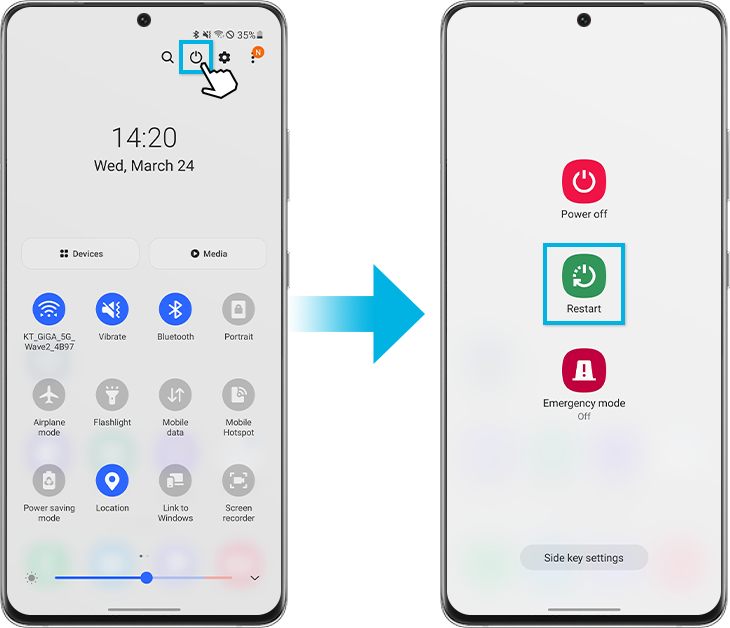
- Restart your phone: Swipe down from the top, tap the Power icon, and select Restart.
- Check signal strength: Weak signals can prevent 5G connectivity. Move closer to a window or higher ground.
- Disable Wi-Fi calling: Go to Settings > Connections > Wi-Fi Calling and turn it off temporarily.
- Reset network settings: Navigate to Settings > General Management > Reset > Reset Network Settings.
5. Supported Samsung Galaxy devices
Most modern Samsung Galaxy devices support 5G, including the Galaxy S24, Galaxy S25, Galaxy S26, Galaxy Z Fold, Galaxy Z Flip, and select Galaxy A series models. Check your device specifications to confirm 5G compatibility.
6. Related Samsung support topics

Thank you for your feedback!
Please answer all questions.