How to Check the Liquid Damage Indicator on Your Phone
How to Check the Liquid Damage Indicator on My Samsung Galaxy Device
If you suspect your Samsung Galaxy phone or tablet has been exposed to liquid, you can check the Liquid Damage Indicator (LDI) inside the SIM or MicroSD card tray. The LDI changes color when exposed to moisture, helping you confirm if water damage has occurred. If the LDI is pink, purple, or red, the device has been exposed to liquid and may require service. If it is white or has light-colored marks, the device is not affected.
1. How to Inspect the Liquid Damage Indicator
- Power off your device: Turn off your Samsung Galaxy phone or tablet before proceeding.
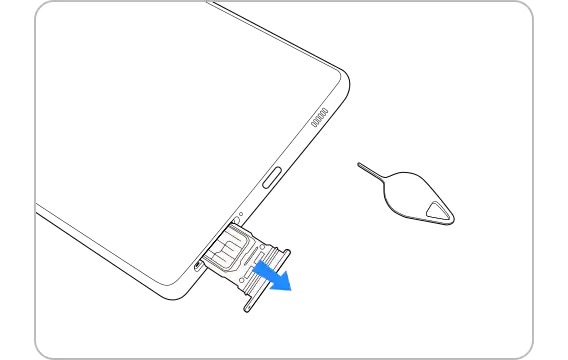
- Eject the card tray: Insert the ejector tool that came with your device into the small hole next to the SIM/MicroSD tray to remove it.
- Check the LDI color: Shine a flashlight into the SIM/MicroSD slot and inspect the LDI. A solid pink, purple, or red color indicates liquid exposure. If the LDI is white or has light pink or purple marks, the device is not exposed to moisture.
2. What Does the LDI Color Mean?
- White or light-colored marks: The device has not been exposed to liquid.
- Pink, purple, or red: The device has been exposed to liquid and may require service.
3. Supported Samsung Galaxy Devices
The Liquid Damage Indicator (LDI) is available on most Samsung Galaxy devices, including the Galaxy S series (S24, S25, S26), Galaxy Z Fold, Galaxy Z Flip, and Galaxy A series. However, the SIM/MicroSD tray location may vary depending on your specific model.
4. Additional Things to Check
- Ensure you have the ejector tool that came with your device and a flashlight to properly inspect the LDI.
- If the LDI is difficult to see, consult a Samsung Support Center for assistance.
5. Why Liquid Damage Is Not Covered Under Warranty
- Liquid damage is considered physical damage and is not covered under the Samsung Limited Warranty. If the LDI indicates liquid exposure, you will need to arrange a repair through the Samsung Support Center.
Related Samsung Support Topics
Thank you for your feedback!
Please answer all questions.