How to Add a Watermark and Date to Galaxy Photos
How to Add Watermark and Date/Time to Photos on Samsung Galaxy Camera
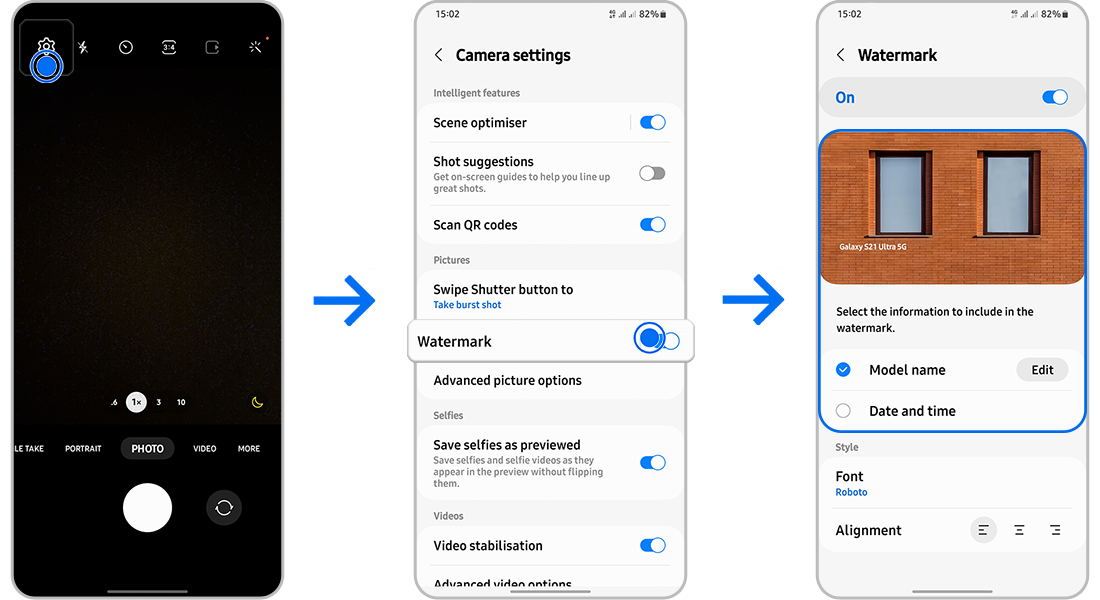
To add a watermark and display the date and time on photos taken with your Samsung Galaxy device, open the Camera app and access the settings menu. This feature allows you to personalize your images and track when they were captured, ensuring better organization and identification of your photos.
1. How to Enable Watermark and Date/Time on Photos
- Open the Camera app on your Samsung Galaxy device.
- Tap the Settings icon (gear icon) located in the top-right corner of the screen.
- Select Watermark from the list of options and toggle it on.
- Edit the watermark text if needed, such as adding your name or a custom message.
- Enable Date and time to display the capture timestamp on your photos.
- Preview the changes using the sample image provided in the settings menu.
2. Additional Things to Check
- Ensure your Samsung Galaxy device is running the latest software version, as older versions may have limited features or bugs affecting watermark functionality.
- Verify that the watermark settings are applied correctly by taking a test photo after enabling the feature.
- Note that the watermark and date/time will only apply to new photos taken after enabling the feature; existing photos remain unchanged.
3. Supported Samsung Galaxy Devices
This feature is available on most Samsung Galaxy devices, including:
Galaxy S24, Galaxy S25, Galaxy S26, Galaxy Z Fold, Galaxy Z Flip, and Galaxy A series devices.
4. Why the Watermark Feature May Not Work
- The feature may not be supported on older Samsung Galaxy models or specific camera modes.
- Software bugs or glitches can prevent the watermark from appearing correctly. Restarting the Camera app or device may resolve the issue.
5. Related Samsung Support Topics
Thank you for your feedback!
Please answer all questions.