How to Transfer iPhone Data to a Galaxy with Smart Switch
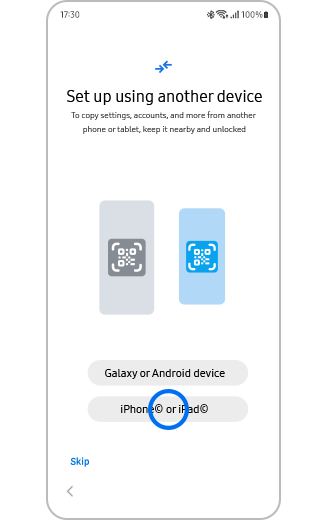
How to Transfer Data from iPhone or iPad to Samsung Galaxy Devices Using Smart Switch
Transferring data from an iPhone or iPad to a Samsung Galaxy device is simple with Smart Switch. This tool supports cable-based transfers and iCloud imports, making it easy to move essential data like contacts, photos, and app settings during setup or anytime afterward.
1. How to Transfer Data Using Smart Switch
- Connect your devices: Use a USB-C to Lightning cable to connect your Samsung Galaxy device to your iPhone or iPad. Tap Trust on your iOS device when prompted.
- Select data to transfer: On your Galaxy device, open Smart Switch and choose the data types you want to transfer—such as contacts, messages, photos, and apps—then tap Transfer.
- Import data: Keep both devices connected until Smart Switch finishes importing your data and completes the setup process.
- Transfer additional data: To import more content later, go to Get your iCloud data, sign in to your iCloud account, and select the items you want to import.
2. Can I Transfer Data Without a Cable?
Yes, you can transfer data wirelessly using iCloud. After connecting your devices, select iCloud as the transfer method, sign in to your iCloud account, and choose the content you'd like to move to your Galaxy device.
3. What Happens to Apps During Transfer?
- Some iOS apps may not have direct Android equivalents. In such cases, Smart Switch will suggest similar Android apps to replace them.
- App data, such as login credentials and preferences, may not always transfer due to platform differences.
4. Supported Samsung Galaxy Devices
Smart Switch is compatible with most recent Samsung Galaxy devices, including:
- Galaxy S24, S25, S26 series
- Galaxy Z Fold and Z Flip series
- Galaxy A series (A15, A25, etc.)
5. Additional Things to Check
- Ensure both devices are fully charged before starting the transfer.
- Make sure your iCloud account has enough storage space for backups.
- Update Smart Switch to the latest version on both devices for optimal performance.
6. Related Samsung Support Topics
Thank you for your feedback!
Please answer all questions.